The blog site has moved. If you are not redirected automatically, click here.
Tunneling from SolveIt to your Machine
Let’s give a LLM a remote control to do anything on your computer!
LLMs
Agents
SolveIt
Shell
How to create a SSH tunnel with Bore to connect the SolveIt LLM to your computer.
Author
Salman Naqvi
Published
Tuesday, 27 January 2026
This post notes down what was originally taught by Jeremy Howard in Lesson 7 of the SolveIt course course led by Jeremy Howard who created the first modern LLM in 2018, and Johnothan Whitaker. SolveIt is also a brilliant problem-solving framework and interactive platform, that puts you in control–not the LLM.
Also thanks to Erik Zhang for his super simple to use Bore library that makes it really easy to setup a tunnel between two computers.
This post details how one can provide SolveIt access to your local machine, thereby giving the LLM in SolveIt the context of your computer. Whilst the post focuses on macOS, the logic can be applied to other systems.
This post walks through setting up the connection via Bore by Erik Zhang, then wrapping it in a simple function that either you can use, or that can be used as an LLM tool.
What you’ll need to do:
Generate an SSH key on SolveIt
Enable remote access on your Mac and add the public key
Install bore-cli and tmux on your Mac
Start a Bore tunnel exposing port 22
Test the connection from SolveIt
(Optional) Create a tool function for LLM use
On SolveIt
We need to first setup SSH Key Authentication. On the SolveIt instance, generate a new SSH key and note/copy the public key.
ssh-keygen-t ed25519cat ~/.ssh/id_ed25519.pub
-t ed25519 generates a key using the ed25519 algorithm. This is supposedly safer, quicker, and a more concise alternative to the traditional RSA algorithm.
On Your Machine
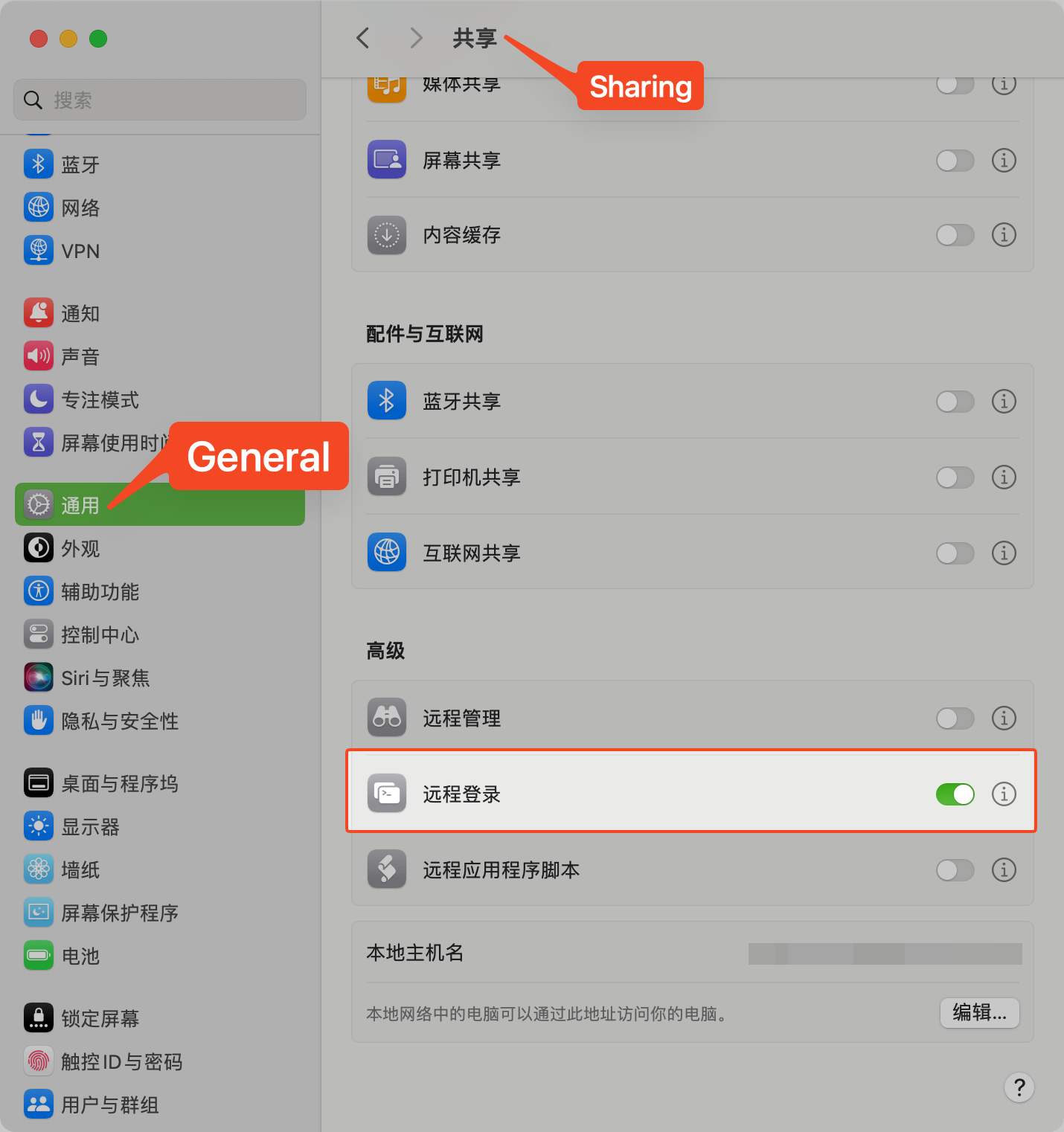
First ensure that remote access is enabled in System Settings on your local machine.
Next, install bore-cli. If you haven’t, also install tmux as it helps keep SSH connections persistent.
brew install bore-clibrew install tmux
Then, start a new tmux session. Here, I’ve called the session bore.
tmux new -s bore
Take the public key you generated on SolveIt. Then, on the local machine, add it to the list of authorized keys.
Now it’s time to run bore. Note down the port that bore returns.
bore local 22 --to bore.pub
This command exposes port 22 on your local machine to the bore public servers through an encrypted tunnel. Why 22? Because that is the default port macOS uses for SSH after enabling remote access. The port you get back is the port bore randomly allocates on its public servers.
Testing the Connection from SolveIt
And that should be it! Test the connection from SolveIt:
If you are running this command outside a Jupyter Notebook or a SolveIt Dialog, you can omit the -o StrictHostKeyChecking=no parameter. This parameter allows us to bypass the prompt that asks us to verify the connection.
fastcore has a run_cmd function we can use to abstract how we run commands. We could also use it to produce a tool the LLM can use.
from fastcore.allimport*?run_cmd
def run_cmd( cmd:str, # The command name to run argstr:str='', # All args to the command, will be split with shlex disallow_re:str=None, # optional regex which, if matched on argstr, will disallow the command allow_re:str=None, # optional regex which, if not matched on argstr, will disallow the command):
Run `cmd` passing split `argstr`, optionally checking for allowed argstr